


Secardeo certVault CA Deployment Guide
1 Introduction
1.1 Purpose of this document
This guide describes the deployment of Secardeo certVault CA as an Azure App Service in Microsoft Azure through the Azure Marketplace. It serves as a guideline for planning, deploying, configuring, and operating certVault CA. certVault CA can also be deployed with terraform. For this, please contact Secardeo at info@secardeo.com.
1.2 Supported PKI architectures
certVault CA supports three PKI architectures. The selected architecture determines the trust anchor, the placement of the Issuing-CA, and which certificate authority is operated.

certVault Single-Tier-CA
A single self-signed certVault CA acts as both the trust anchor and the issuing CA. It directly issues certificates for users, devices, and services. This is the simplest deployment and does not require a separate Issuing-CA deployment
certVault Root-CA
The certVault Root-CA is self-signed and establishes the trust anchor. A separate certVault Issuing-CA is signed by that Root-CA and issues operational certificates. The Root-CA and Issuing-CA are separate certVault CA deployments, and the Root-CA is deployed first
External Root-CA
The trust anchor is operated outside certVault CA. The external Root-CA may sign the certVault Issuing-CA directly, or an external intermediate CA may sign it
1.3 certVault CA functions
Regardless of the selected PKI architecture, certVault CA provides the functions required for a certificate authority. The CA receives certificate requests, issues certificates, processes revocation requests, and publishes certificate status information
Certificate issuance
A registration authority sends certificate requests to the certVault CA API with an API token. certVault CA signs the certificates using the CA key that is stored in an Azure Key Vault. The key never leaves the Key Vault. The key can optionally be stored with HSM protection. certVault CA supports the following key algorithms:
| Algorithm | Sizes | Key protection |
|---|---|---|
| RSA | 2048, 3072, 4096 | HSM or software |
| EC | P-256 | HSM or software |
| ML-DSA (post-quantum) | ML-DSA-44, ML-DSA-65, ML-DSA-87 | Software only |
Certificate revocation
An authorized administrator or application can revoke an issued certificate through the certVault CA API. certVault CA records the revocation status and reason for the certificate. Revoked certificates are included in the published certificate revocation list (CRL). Clients can use the CRL to determine whether a certificate has been revoked
CRL and CA certificate distribution
certVault CA publishes the CA certificates and CRLs through its public distribution endpoints. These endpoints are referenced in certificate through the AIA and CDP extensions
OCSP
When OCSP is enabled, certVault CA provides an OCSP endpoint for online certificate status checks. Clients can query the endpoint to determine whether a certificate is valid, or revoked without downloading the complete CRL
Issuing CA Certificate renewal
An Issuing-CA under a certVault Root-CA monitors the Issuing-CA certificate and performs a renewal workflow when the configured renewal window is reached. The Root-CA issues the renewed Issuing-CA certificate. The Root-CA must be turned on for this to take place. For an Issuing-CA under an External-Root-CA, the external CA remains responsible for signing and renewing the Issuing-CA certificate
Azure components used by certVault CA
The deployment creates the infrastructure required to operate certVault CA:
- The Azure App Service hosts the certVault CA Web App and API.
- A scheduled Web Job that performs background certificate-authority tasks.
- An Azure Key Vault protects CA certificates, private keys, and deployment secrets.
- An Azure Blob Storage to store the public CA certificates and CRLs.
1.4 Security levels
For a deployment consisting of a Root-CA certVault and an Issuing-CA certVault, the required security level must be selected during deployment. The selected level defines whether an additional approval step is required when the Issuing-CA certificate is enrolled or renewed. The required steps for the initial enrollment are described later in this document. The steps to renew the issuing CA certificate are described in the manual. certVault CA supports two security levels:
- Standard security level: Issuing-CA certificate enrollment and renewal are performed by the Root-CA Admin and Issuing-CA Admin using the configured authentication and token-based security controls.
- High security level: Includes all Standard security controls and adds an independent
Approver role. The Issuing-CA certificate enrollment or renewal request must be explicitly approved by an Approver before the Root-CA issues the certificate. The security levels apply only to the interaction between the Root-CA certVault and Issuing-CA certVault. The enrollment or renewal of the Root-CA certificate is governed by the organization's own security and operational controls and is not handled by the certVault CA deployment workflow. More information regarding the flow of enrollment for the different security levels can be found in Appendix D).
1.5 Roles and responsibilities
The certVault CA permission model separates the administration of the Root-CA, the Issuing-CA, and the approval of certificate requests. The applicable roles depend on the selected deployment architecture and security level. The Standard and High security levels apply only to two-tier deployments consisting of a Root-CA and an Issuing-CA. In single-tier deployments, the Root-CA and Issuing-CA functions are combined.
1.5.1 Root-CA Admin
The Root-CA Admin is required for:
- certVault Root-CA
- certVault Single-Tier-CA
The Root-CA Admin is responsible for the operational administration of the Root-CA. This includes the starting and stopping of the app service, access to enrollment API keys, and access to the root-CA logs. The Root-CA Admin has the following permissions that are automatically assigned during the deployment:
| Component | Assigned to |
|---|---|
| Root-CA key vault | Key Vault Secrets User |
| Root-CA webapp | Website Contributor |
| Root-CA Log Analytics workspace | Log Analytics Data Reader |
The Root-CA Admin account should be a separate administrative account. Its credentials should be protected according to the organization's four-eyes principle, for example by splitting the password between two authorized persons.
1.5.2 Issuing-CA Admin
The Issuing-CA Admin is required for:
- certVault Issuing CA under a certVault Root CA
- certVault Issuing CA under an external Root CA
The Issuing-CA Admin is responsible for the operational administration of the Issuing-CA. This includes the starting and stopping of the app service, access to enrollment API keys, and access to the root-CA logs. The Issuing-CA Admin has the following permissions that are automatically assigned during deployment:
| Component | Assigned to |
|---|---|
| Issuing-CA key vault | Key Vault Secrets Officer |
| Issuing-CA webapp | Website Contributor |
| Issuing-CA Log Analytics workspace | Log Analytics Data Reader |
The Issuing-CA Admin must not be granted permissions that allow unauthorized modification of the Root-CA configuration or the Issuing-CA managed identity group.
1.5.3 Approver
The Approver is required only for High security mode in a two-tier deployment with a Root-CA certVault and an Issuing-CA certVault. The Approver reviews certificate signing requests for issuing CA certificates and explicitly approves or denies them. The Approver is an independent role and should be assigned to a different user than the previous roles. The Approver does not require access to the Root-CA or Issuing-CA key vaults. In Standard security mode, no Approver role is required and certificate requests are processed without manual approval.
2 Prerequisites
2.1 License
certVault CA follows a bring-your-own license (BYOL) model. Upon installation a 90-day demo license is automatically applied for trial usage. To use certVault CA productively, a valid license must be provided for continued use. To obtain a serial number for the license, please contact info@secardeo.com. You can either activate the license serial number during the deployment or later on described in the certVault CA manual.
2.2 Application package URL
To deploy certVault CA, you require a URL containing the application package from Secardeo. The URL will be required as a parameter in later deployment steps. If you haven't received the URL yet, please contact info@secardeo.com.
2.3 Azure permissions
The certVault CA deployment consists of two steps: starting the deployment in Azure through the marketplace and running a deployment script (Appendix B)). Both steps should be performed by a user with the following permissions: The user who runs the deployment from the marketplace must be able to create the required resources. For this, they need one of the following permissions on the target resource group or subscription:
- Owner, or
- Contributor plus User Access Administrator, or
- Contributor plus Role Based Access Control Administrator. That role must be allowed to assign the following roles:
- Key Vault Administrator
- Key Vault Certificates Officer
- Key Vault Certificate User
- Key Vault Crypto User
- Key Vault Secrets Officer
- Key Vault Secrets User
- Storage Blob Data Contributor
- Storage Blob Data Reader
- Monitoring Metrics Publisher
- Website Contributor
- Log Analytics Data Reader
Required permissions in Microsoft Entra ID
| Type of CA | Required Permission |
|---|---|
| Single-Tier-CA | The permission to create groups |
| Issuing-CA under an external CA | The permission to create groups |
| Root-CA of certVault | The role Global Administrator or Privileged Role Administrator |
| Issuing-CA under a certVault Root-CA | The permission to add members to the Root-CA group of Issuing-CAs (Groups Administrator or group owner) and to assign app roles of the Root-CA app registration (Application Administrator or owner of the app). E.g. Global Administrator |
2.4 Network configuration
To use a certVault demo license the Secardeo update server needs to be reachable. Additionally, the following network configurations need to be made. The following connections are required only for the CA deployments listed in the "Applicable CA deployment" column.
| Source | Destination | Port | Srvc | Applies to | Description |
|---|---|---|---|---|---|
| Secardeo RA component | certVault CA | 443 | HTTPS | Single-Tier-CA, Issuing-CA | Used for certificate enrollment/renewal / revocation |
| Any | certVault CA | 80/4 43 | HTTP/ HTTPS | Single-Tier-CA, Issuing-CA | Used for CDP/AIA |
| Any | certVault CA | 443 | OCSP | Single-Tier-CA, Issuing-CA | Used for OCSP when enabled |
| certVault CA | update.secardeo. com | 443 | HTTP/ HTTPS | Single-Tier-CA, Issuing-CA | Required for automatic license requests and demo license use. |
| certVault Issuing-CA | certVault-Root CA | 443 | HTTPS | Issuing-CA under certVault-Root-CA | Used for issuing CA certificate enrollment/renewal |
For the recommended network configuration and VNet requirements, see Appendix F).
2.5 Plan the deployment
Decide the following values before you start. They will be required during the deployment:
| Decision | Options | Default |
|---|---|---|
| PKI architecture | Single-Tier-CA, Root-CA of certVault, Issuing-CA with an external root (see chapter 1.2) | - |
| Resource group and region | One resource group per CA is recommended. | - |
| Web App name | Globally unique, 2 to 60 letters, digits or hyphens. It becomes <name>.azurewebsites.net. The Key Vault and storage account names are derived from it. | - |
| CA subject | Common name (CN) is required. Organization (O), organizational unit (OU), locality (L), state or province (ST) and country (C) are optional. | - |
| Key algorithm | RSA 4096, RSA 3072, RSA 2048, EC P-256, ML-DSA-87, ML-DSA-65, ML-DSA-44 (post-quantum). Certificates issued by certVault CA using an RSA or EC P-256 CA are signed with SHA-256. ML-DSA uses its own signature algorithm and has no separate hash selection. | RSA 4096 |
| Key protection | HSM (Premium Key Vault) or Software. ML-DSA keys are stored as a Key Vault secret, because the Key Vault cannot hold ML-DSA keys. HSM is therefore not possible. | HSM |
| Validity (Single-Tier-CA, Root-CA) | Number of years from 1 to 50 | 10 years |
| Security level (Root-CA) | Standard or High | Standard |
| Network | No VNet integration, new dedicated VNet, existing VNet | No VNet integration |
If you select a Root-CA of certVault, you must first deploy the root CA by following the instructions from chapters 3 and 4. Afterwards, you must repeat the deployment for each issuing CA.
3 Deploy from the Azure Marketplace
During the Marketplace deployment, you will be asked to enter the previously described values. You will need to complete the following steps once per CA.
3.1 Starting the deployment
Complete the deployment in the following order:
1. Sign in to the Azure portal as the deploying user.
2. Open the Azure Marketplace and search for certVault CA. Select the plan and your subscription and click "Create".
3. Complete the deployment by entering the information described in the following chapters. Required fields are marked with the "*" symbol.
3.2 Certificate authority
| Field | Shown for | Description |
|---|---|---|
| CA role | All | Single-Tier-CA, Root-CA of certVault or Issuing-CA. |
| Root-CA | Issuing-CA | certVault Root-CA or External Root-CA. |
| License serial number | Single-Tier-CA, Issuing-CA | Optional: Provided by Secardeo. |
| Security level | Root-CA | Standard or High, see section 1.4. |
| certVault Root-CA Web App | Issuing-CA under a certVault Root-CA | Select the Web App of the Root-CA deployment. |
| Root-CA enrollment token | Issuing-CA under a certVault Root-CA | The ICA enrollment token handed over by the Root-CA administrator, see chapter 5. |
| Common name (CN), Organization (O), Organizational unit (OU), Locality (L), State or province (ST), Country (C) | All | Subject of the CA certificate. Only the common name is required. |
| Key algorithm, Key protection | All | See section 2.5. |
| Validity (years) | Single-Tier-CA, Root-CA | Validity of the self-signed CA certificate. Certificates it issues cannot be valid longer. |

3.3 Advanced settings
The settings on this page are optional and can be skipped for basic deployment
Customize App Service plan and network
| Field | Description | Default |
|---|---|---|
| App Service Plan | Create a new Windows plan or use an existing one in the same subscription and region. | New plan |
| App Service pricing tier | Select a pricing tier for the App Service plan with which certVault CA should be deployed. This can be changed later. | B1 |
| Network integration | You can select whether to create a new VNet or if certVault CA should use an existing VNet. | No VNet integration |
Customize CA settings
| Field | Shown for | Default |
|---|---|---|
| Validity of issued Issuing-CA certificates | Root-CA | 60 months |
| Issuing-CA renewal window | Issuing-CA under a certVault Root-CA | 180 days before expiry |
| Additional AIA URLs, Additional CDP URLs | All | None. Only required if you want to publish the AIA or CDP on an external endpoint. |
| Enable the OCSP responder | Single-Tier-CA, Issuing-CA | Enabled |
| OCSP responder URL | Single-Tier-CA, Issuing-CA | https://<web-app-name>.azurewebsites.net/ocsp |
| Root-CA CRL validity (months) | Root-CA | 12 months |

3.4 Start the deployment
The page "After the deployment" shows the powershell command that will be required to complete the deployment. You can copy the command and press on "Review + Create" and "Create" to start the deployment. After the deployment is completed (after about 5-10 minutes), you will need to continue with the copied command in the following chapter. You can also find the command in the Outputs page of the deployment in the attribute "setupCommand".
4 Complete the setup
The previous Marketplace deployment has created most of the required Azure resources. Some resources such as the CA certificate, Entra ID groups, and role assignments will be created through a separate Powershell script. This script must be executed once per deployment. The script should be run by a global administrator. The tasks of the script are described in Appendix B).
4.1 Run the setup script
1. You must run the powershell script on a machine where the Azure CLI is installed. You can also use the Azure Cloud Shell for this ( https://shell.azure.com/powershell).
2. Run the following command. If you don't want the script to automatically create the required groups, you can add the -NoGroupCreation. In this case, the group IDs must be entered in the respective parameters described in AppendixG):
 Invoke-WebRequest https://secardeo.blob.core.windows.net/certvault/Complete-CertVaultSetup.ps1 -OutFile Complete-CertVaultSetup.ps1
./Complete-CertVaultSetup.ps1 -WebAppName <web-app-name>
3. The script shows its progress and ends with a summary of what is required. In the following deployment scenarios, further steps are needed:
a. Root-CA of certVault: see chapter 4.3.1.
b. Issuing-CA with an external root CA: see chapter 4.3.2.
c. Issuing-CA with a Root-CA of certVault in the high security mode: see chapter 4.3.3.
4.2 Groups and app registration
The following groups are used by certVault CA. The relevant groups depend on the PKI architecture. More information can be found in chapter 1.5.
| Group | Default name | Members |
|---|---|---|
| CA administrators | certVault-<web-app-name>- CA-Admins | CA administrators (Single-Tier-CA) |
| Root-CA administrators | certVault-<web-app-name>- Root-CA-Admins | Root-CA administrators |
| Issuing-CA administrators | certVault-<web-app-name>- Issuing-CA-Admins | Issuing-CA administrators |
| Issuing-CA identities | certVault-<web-app-name>- Issuing-CA-Identities | Managed identities of the Issuing-CAs; added by the script |
| Approvers | certVault-<web-app-name>- Approvers | At least one approver (High security level) |
- The script reuses existing groups with these names or the groups specified in the deployment. To use your own groups, pass their names or object IDs as parameters (Appendix G)). With -NoGroupCreation, the script only uses existing groups.
- The script never adds users to the groups.
- If the tenant has Microsoft Entra ID P1, the approver group is created as a role-assignable group. Then only Global Administrators, Privileged Role Administrators and group owners can change its members.
- When deploying a Root-CA of a 2-tier PKI, the script creates the app registration certVault Root CA -<web-app-name>. This app registration is required for certVault CA to function.
4.3 Post-Deployment Tasks
4.3.1 Root-CA of a 2-tier PKI
1. Enter the root CA administrator to the root CA administrators group.
2. If you selected high security mode, you must add at least one user to the approvers group. A user of this group will be required during the creation of the issuing CA.
3. The root CA administrator must retrieve the ICA-Enrollment token from the Key Vault of the root CA. To retrieve the token, you must run the following command. The name of the Key Vault is shown in the output of the deployment script:
az keyvault secret show --vault-name <root-ca-key-vault-name> --name ica-enrollment-token-001 --query value -o tsv
4. The deployment of the root CA is completed. Repeat the steps of this deployment guide for the issuing CA. You will be required to enter the enrollment token during the deployment.
4.3.2 Issuing-CA with an external root CA
After running the deployment script, the key pair of the issuing CA certificate was successfully created. To create the certificate, you must retrieve a CSR and submit it at your external CA. The CSR can be found in the folder where you ran the deployment script with the name <web-app-name>-issuing-ca.csr. If you ran the script from the Azure Cloud Shell, you can download it with "Manage files". You must sign the CSR with your external CA. To submit the request at a Windows CA (ADCS), you can run the following command:
certreq -attrib "CertificateTemplate:SubCA" -submit <web-app-name>-issuing-ca.csr
You must copy the certificate file (DER) to the folder where you ran the deployment script and run the script again.
./Complete-CertVaultSetup.ps1 -WebAppName <web-app-name> -IssuedCertificatePath ./issuing-ca.cer
If you want to use certVault CA to host your external root CA certificate and CRL, you can upload them using the following attributes:
- -RootCaCertificatePath ./rootca.cer
- -RootCaCrlPath ./rootca.crl
4.3.3 Issuing-CA with a certVault CA root in the high security mode
After running the deployment script, the output should inform you that the creation of the issuing CA certificate is pending and requires approval. To approve the request, a user of the approval group must follow these steps:
1. Run the following powershell command to download the approval script:
Invoke-WebRequest https://secardeo.blob.core.windows.net/certvault/Approve-IcaCertificateRequest.ps1 -OutFile Approve-IcaCertificateRequest.ps1
2. Run the following command to start the approval procedure. Run the approval commands in a separate local PowerShell session, outside Azure Cloud Shell. Sign in with the approver account and complete MFA when prompted. You will be presented with the pending request and will be able to select to approve the request. The full command can also be taken from the output of the deployment script:
./Approve-IcaCertificateRequest.ps1 -RootCaUrl https://<root-ca-web-app>.azurewebsites.net -TenantId <tenant-id> -ApiClientId <client-id>
3. Check the content of the request and type A to approve or D to deny the certificate request. Confirm with YES.
4. certVault CA will automatically retrieve the issued certificate within 10 minutes and the setup should be completed.
5 Contact
Secardeo GmbH
Hohenadlstr. 4
D-85737 Ismaning
Germany
E-Mail: support@secardeo.com
Phone: +49 89 18 93 58 9-8
6 Appendix
A) Deployed resources
The following resources are created as part of the Marketplace deployment:
| Type | Description |
|---|---|
| Microsoft.Web/serverfarms | Creates the Windows App Service plan for certVault. |
| Microsoft.Web/sites | Creates the Azure Web App, managed identity, app settings, WebJob package mount, HTTP/HTTPS behavior, web sockets, and session affinity settings. |
| Microsoft.KeyVault/vaults | Creates the Key Vault used for CA certificate material and generated deployment secrets. Purge protection is enabled. |
| Microsoft.Storage/storageAccounts | Creates the Storage Account used by certVault CA. |
| Microsoft.Storage/storageAccounts/blobServices | Configures blob-service retention settings for the certVault CA Storage Account. |
| Microsoft.Storage/storageAccounts/blobServices/containers | Creates the private blob container used for serial, CRL, and publication data. |
| Microsoft.ManagedIdentity/userAssignedIdentities | Creates the deployment identity used by the bootstrap deployment script. |
| Microsoft.Authorization/roleAssignments | Assigns required RBAC permissions to the Web App identity and deployment identity, including Monitoring Metrics Publisher at Data Collection Rule scope when Azure Monitor logging is enabled. |
| Microsoft.Resources/deploymentScripts | Runs the Azure CLI bootstrap script that initializes required Key Vault secrets and deployment state idempotently. |
| Microsoft.OperationalInsights/workspaces | Creates the Log Analytics workspace used as the certVault CA logging destination. |
| Microsoft.OperationalInsights/workspaces/tables | Creates the certVaultLogs_CL custom table and its TimeGenerated, Time, Level, ThreadID, Tag, and Text schema. |
| Microsoft.Insights/dataCollectionEndpoints | Creates the Azure Monitor Logs Ingestion endpoint used by the Web App. |
| Microsoft.Insights/dataCollectionRules | Declares the Custom-certVaultLogs_CL stream and routes it to the certVaultLogs_CL Log Analytics table. |
B) Deployment Script
The deployment script completes the following steps:
| Step | Applies to |
|---|---|
| Checks the sign-in and the permissions; stops if a required role is missing. | All |
| Creates or reuses the administrator group and assigns the required Azure roles. | All |
| Creates or reuses the Issuing-CA identity group and, for the High security level, the approver group. Creates the Root API app registration and grants the Root-CA Web App the Microsoft Graph permission GroupMember.Read.All. | Root-CA |
| Adds the Issuing-CA managed identity to the Root-CA's Issuing-CA identity group, assigns the Root API app role and Storage Blob Data Reader on the Root-CA storage account. | Issuing-CA under a certVault Root-CA |
| Creates the self-signed CA certificate. | Single-Tier-CA, Root-CA |
| Creates the CA certificate request and starts the enrollment at the Root-CA. | Issuing-CA under a certVault Root-CA |
| Creates the CA certificate request and saves the CSR as a file; a second run completes it. | Issuing-CA under an external CA |
| Removes the Key Vault Administrator role of the deployment identity, which is only needed during the deployment. | All |
C) CA certificate provisioning reference
Use this appendix for the detailed caCertificate behavior and deployment script parameter reference. The main workflow remains in section 4.1.
| Mode | CA certificate behavior |
|---|---|
| Single-Tier-CA | For RSA/EC and ML-DSA, use the deployment script with -IsRoot. RSA/EC create a Key Vault certificate named caCertificate; ML-DSA stores a passwordless PKCS#12 containing the certificate and private key in the caCertificate secret. |
| External-Root-CA | For RSA/EC and ML-DSA, use the deployment script without -IsRoot to create the pending operation or secret and CSR. After the external CA issues the certificate, complete the RSA/EC Key Vault operation or rerun the script for ML-DSA with -IssuedCertificatePath to publish the caCertificate PFX secret. |
| Root-CA of certVault | For RSA/EC and ML-DSA, use the script with -IsRoot to create the self-signed Root CA. RSA/EC create the caCertificate Key Vault certificate; ML-DSA stores the self-signed certificate and private key as a passwordless PKCS#12 in the caCertificate secret. |
| Issuing-CA | For RSA/EC, use the script without -IsRoot to create a pending Key Vault certificate operation. For ML-DSA, use the script without -IsRoot to create caCertificate-pending and the CSR. The WebJob submits the CSR to Root-CA of certVault and stores the issued certificate chain. |
The following table describes the parameters accepted by CreateCACertificateInKeyVault.ps1. Use the parameterized script for all deployment modes and supported key types.
| Attribute | Value |
|---|---|
| VaultName | Contains the name of your key vault |
| Subject | Contains the distinguished name that should be written in the CA certificate |
| KeySize | RSA: key size in bits; EC: 256, 384, or 521; ML-DSA: parameter set 44, 65, or 87. |
| KeyType | RSA, EC, ML-DSA, RSA-HSM, or EC-HSM. ML-DSA is stored as a PFX secret rather than a Key Vault certificate. |
| Exportable | Contains if the key should be exportable from the Key Vault. For HSM keys, this value must be set to $false. |
| IsRoot | Contains if this certificate is a root CA certificate. |
| ValidityInMonths | Contains the validity in months. |
| CaPathLengthConstraint | Contains the maximum number of subordinate CAs under this CA in a chain. Can be set to 0 for issuing CAs. |
| AccessToken | Azure access token for the Key Vault REST API. With Azure CLI, obtain one for https://vault.azure.net. |
| CsrOutputPath | Optional output path for an ML-DSA CSR. Defaults to caCertificate.csr. |
| IssuedCertificatePath | Path to an externally issued ML-DSA certificate when completing caCertificate-pending. |
| ReplaceExisting | Allows overwriting an existing ML-DSA pending secret when explicitly supplied. |
D) Security Level detailed flow
The Standard security level applies to two-tier deployments consisting of a Root-CA and an Issuing-CA. It combines Entra ID authentication with reusable security tokens. The enrollment token is generated during deployment and securely transferred to the Issuing-CA administrator. A separate revocation token is also generated during deployment for certificate revocation operations. The Issuing-CA service is authorized through an Entra ID managed identity. During deployment, an allowed managed identity group is created. The Issuing-CA managed identity must be a member of this group before enrollment can take place. The Root-CA WebApp validates both the managed identity and the reusable token before processing a certificate request.
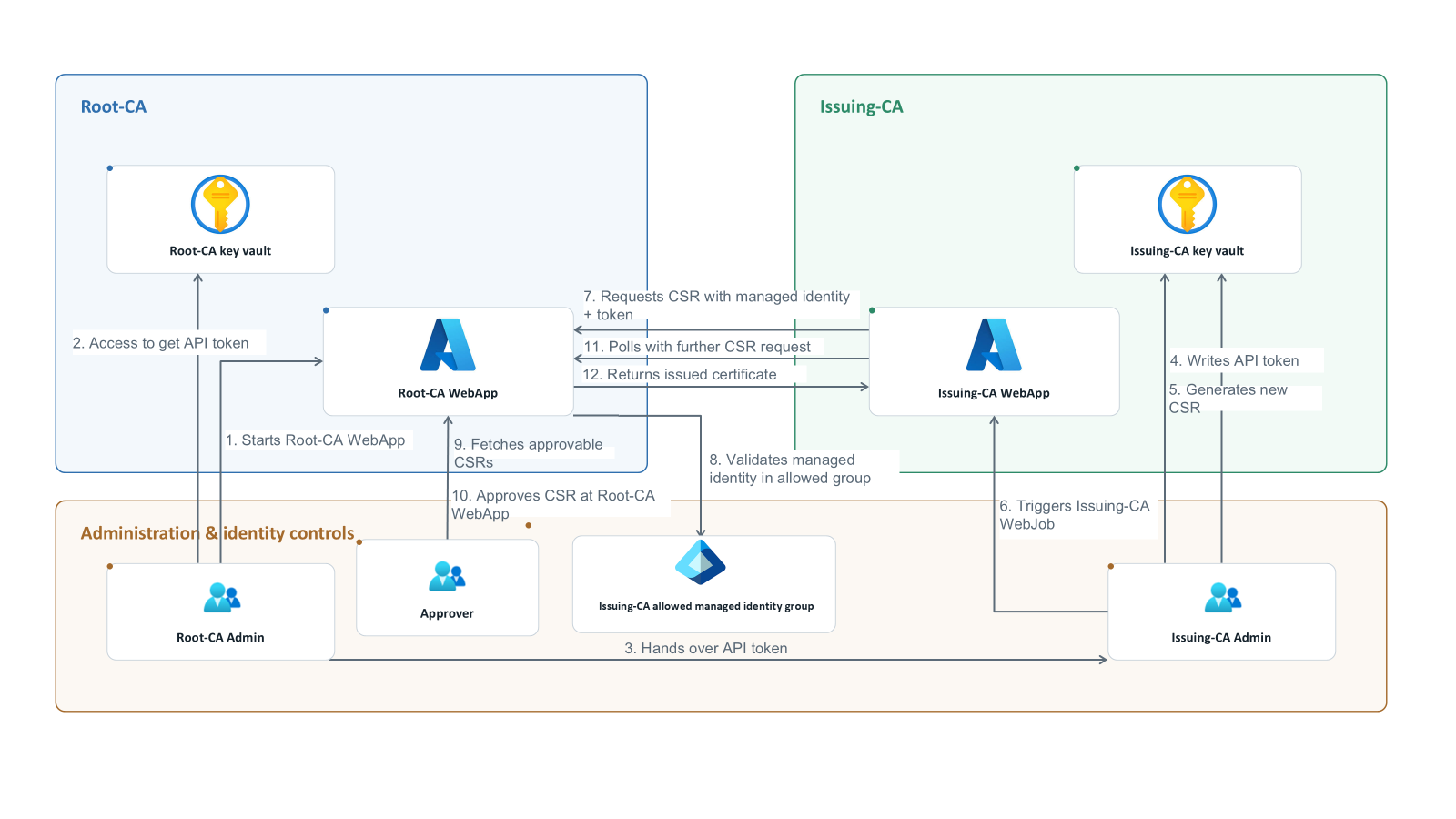
The high security level is available for two-tier deployments consisting of a Root-CA and an Issuing-CA. It extends the standard security level by introducing an independent Approver role. Issuing-CA certificate requests must therefore be explicitly approved before the Root-CA issues the certificate.

The Root-CA Admin first starts the Root-CA WebApp and retrieves an API token from the Root-CA key vault. The token is securely handed over to the Issuing-CA Admin, who stores it in the Issuing-CA key vault. The Issuing-CA Admin then generates a new certificate signing request in the key vault and triggers the Issuing-CA WebJob. The Issuing-CA WebJob submits the CSR to the Root-CA WebApp. The request contains both the Issuing-CA managed identity and the API token. The Root-CA WebApp validates that the managed identity is a member of the configured Issuing-CA allowed managed identity group and verifies the API token. If both validations succeed, the request is placed in a pending state. The Approver retrieves the pending CSR requests from the Root-CA WebApp and reviews the available request information. The Approver then explicitly approves or denies the CSR. Only an approved CSR can proceed to certificate issuance. After approval, the Issuing-CA WebJob continues polling the Root-CA WebApp by sending the CSR request periodically. Once the approval has been processed, the Root-CA WebApp returns the issued certificate to the Issuing-CA WebJob. If the CSR is denied, no certificate is issued.
E) Optional VPN and VNet connectivity
VPN connectivity is independent of the CA role and is not created by the certVault CA deployment. Configure it only when the private deployment must communicate with an on-premises network or another Azure VNet. For an on-premises network, use an Azure Site-to-Site IPsec VPN. For another Azure VNet, use a VNet-to-VNet VPN gateway connection. Point-to-Site VPN is intended for individual client devices and is not normally used to connect an entire network to the certVault CA VNet. Microsoft documentation: Site-to-Site VPN tutorial and VNet-to-VNet VPN tutorial.
- Reserve a separate subnet named GatewaySubnet if an Azure VPN gateway will be added. Do not place the VPN gateway in the App Service or private endpoint subnet.
- Ensure the certVault CA VNet address space, the remote network address space, and any peered VNet address spaces do not overlap.
- Configure routing, firewall rules, and DNS forwarding as required by the connected network. Verify that the VPN connection reports Connected and that the private Web App hostname resolves and reaches the private endpoint.
F) Recommeded network architecture
Use private networking for certVault CA. The recommended architecture is one dedicated PKI VNet for the certVault Root-CA, Issuing-CA, and related Secardeo RA components such as certPort. The VNet should provide:
- An App Service integration subnet delegated to Microsoft.Web/serverFarms.
- A separate private endpoint subnet.
- Private DNS resolution for the private App Service endpoints.
- Appropriate routing, firewall, and NSG rules.
The Web Apps are not deployed into the VNet like virtual machines. VNet integration provides outbound connectivity from the Web Apps through the integration subnet. Private endpoints provide private inbound access to the Web Apps. For a two-tier deployment, deploy the Root-CA and Issuing-CA in the same PKI VNet:
1. Deploy the Root-CA.
2. Deploy the Issuing-CA using the same VNet and subnet configuration.
3. Ensure that the Issuing-CA can resolve and reach the Root-CA through its private endpoint. A Secardeo RA component such as certPort can use the same VNet when it belongs to the same security and administration boundary. certPort can use a private endpoint for inbound access and VNet integration for access to certVault CA and its database. Use a separate VNet for certPort when it requires separate ownership, routing, firewall rules, or security isolation. Connect the VNets using VNet peering or the customer's standard network connectivity solution. A separate VNet for each certVault CA is not required.
G) Setup script parameters
All parameters are optional.
| Parameter | Purpose |
|---|---|
| -WebAppName | Name of the certVault CA Web App. Without it, the script lists the certVault CA installations to choose from. |
| -ResourceGroup | Resource group of the Web App, if the name is ambiguous. |
| -RootCaAdminGroup, -IssuingCaAdminGroup, -IssuingCaIdentityGroup, -ApproverGroup | Name or object ID of an existing group to use instead of the default group. |
| -NoGroupCreation | Use existing groups only. Missing groups are listed with the command to create them. |
| -IssuedCertificatePath, -RootCaCertificatePath, -RootCaCrlPath | Issuing-CA under an external CA: complete the request and upload the root certificate and CRL. |
| -CsrOutputPath | Issuing-CA under an external CA: where the CSR is saved. |
| -WhatIf | Shows the planned changes without making them. |